VIM是远程开发场景中必不可少的编辑器,amix/vimrc提供了一些有用的配置,本文对其安装及使用技巧进行记录。
1. 升级VIM版本
推荐使用如下命令将VIM版本升级到8.2及以上。
1
2
3
4
5
add-apt-repository ppa:jonathonf/vim
apt update
apt purge -y vim
apt autoremove -y
apt install -y vim
若执行add-apt-repository ppa:jonathonf/vim时遇到ModuleNotFoundError: No module named 'apt_pkg'问题,只需将/usr/bin/add-apt-repository中的!/usr/bin/python3改为!/usr/bin/python3.6即可。
2. 安装vimrc
- 使用如下命令进行vimrc的安装:
1
2
3
git clone --depth=1 https://github.com/wzzju/vimrc.git ~/.vim_runtime
sh ~/.vim_runtime/install_awesome_vimrc.sh
cd ~/.vim_runtime && python3 update_plugins.py
- 为使用ACK插件,完成上面安装命令后,需要在系统中安装
ack-grep工具,Ubuntu/MacOS系统的安装命令如下:1 2 3 4
# Ubuntu apt install -y ack-grep # MacOS brew install ack
- 若使用ACK插件时遇到一些perl warning信息,可尝试设置如下环境变量:
1
2
3
4
# Locales
export LANGUAGE=en_US.UTF-8
export LANG=en_US.UTF-8:zh_CN.UTF-8
export LC_ALL=en_US.UTF-8
- 若配色显示异常,需检查
$TERM值是否被设置为xterm-256color。可使用export TERM=xterm-256color对$TERM进行设置
3. 定制VIM配置
3.1 安装vim-plug管理插件
- 使用如下命令安装vim-plug工具:
1
curl -fLo ~/.vim/autoload/plug.vim --create-dirs https://raw.githubusercontent.com/junegunn/vim-plug/master/plug.vim
- 使用
vim ~/.vim_runtime/my_plugins.vim命令创建my_plugins.vim文件,用于管理VIM插件1 2 3 4
" 设置插件安装目录为`~/.vim_runtime/my_plugins` call plug#begin('~/.vim_runtime/my_plugins') " 所有Plug命令均应放在`call plug#begin`和`call plug#end`之间 call plug#end()
注意:本文所述的
~/.vim_runtime/my_plugins.vim完整内容如下:1 2 3 4 5 6 7 8 9 10 11 12 13 14 15 16
call plug#begin('~/.vim_runtime/my_plugins') Plug 'jeffkreeftmeijer/vim-numbertoggle' Plug 'jmcantrell/vim-virtualenv' Plug 'rhysd/vim-clang-format' Plug 'wzzju/black.vim' Plug 'fisadev/vim-isort' Plug 'zivyangll/git-blame.vim' Plug 'wzzju/preview-markdown.vim' Plug 'prabirshrestha/async.vim' Plug 'prabirshrestha/vim-lsp' Plug 'wzzju/vimcompletesme' Plug 'kien/rainbow_parentheses.vim' Plug 'crusoexia/vim-monokai' Plug 'octol/vim-cpp-enhanced-highlight' Plug 'Yggdroot/indentLine' call plug#end()
- 修改
~/.vimrc文件,在try块中添加一行source ~/.vim_runtime/my_plugins.vim,修改后的try块内容如下:1 2 3 4 5
try source ~/.vim_runtime/my_plugins.vim source ~/.vim_runtime/my_configs.vim catch endtry
- 在VIM命令模式下执行
:PlugInstall即可进行所有插件的安装,执行:PlugClean即可卸载未使用的插件
3.2 安装混合行号显示插件
在~/.vim_runtime/my_plugins.vim中添加Plug 'jeffkreeftmeijer/vim-numbertoggle',保存后再次打开VIM运行:PlugInstall命令完成安装。
注意:开启行号显示需要在~/.vim_runtime/my_configs.vim文件中添加一句set number。
3.3 安装vim-virtualenv插件
在~/.vim_runtime/my_plugins.vim中添加Plug 'jmcantrell/vim-virtualenv',保存后再次打开VIM运行:PlugInstall命令完成安装。
- python的代码补全依赖
jedi-vim插件,且需要预先安装jedi包。可使用pip install jedi进行安装或者执行pip install python-lsp-server命令自动安装pylsp所依赖的jedi包 - 若使用
virtualenv进行python环境控制,需要安装vim-virtualenv插件以正确设置PYTHONPATH,否则VIM在初始化jedi-vim插件时会报错 - 建议在
~/.vim_runtime/my_configs.vim中添加let g:jedi#auto_initialization = 0以关闭jedi的自动初始化,避免与下文所述的python-lsp-server一同进行代码提示
3.3.1 virtualenv的安装与使用
- 安装命令:
pip install virtualenv virtualenvwrapper - 在
~/.bashrc或者~/.zshrc中添加如下内容:1 2 3 4 5 6 7
if [ -f ~/.local/bin/virtualenvwrapper.sh ]; then export VIRTUALENVWRAPPER_PYTHON=/usr/bin/python3.8 export VIRTUALENVWRAPPER_VIRTUALENV=~/.local/bin/virtualenv export WORKON_HOME=~/.virtualenvs source ~/.local/bin/virtualenvwrapper.sh fi
virtualenv常用命令:- 创建虚环境:
mkvirtualenv venv_name --python=python3.7 - 列出虚环境:
lsvirtualenv -b - 切换虚环境:
workon venv_name - 查看当前虚环境中安装的python包:
lssitepackages - 进入当前虚环境的目录:
cdvirtualenv [虚环镜中的子目录名,如bin、lib] - 复制虚环境:
cpvirtualenv [source_venv] [dest_venv] - 退出虚环境:
deactivate - 删除虚环境:
rmvirtualenv venv_name - 将开发中的python库加入到当前虚环境的PYTHONPATH中:
add2virtualenv ${PROJECT}/python - 从当前虚环境的PYTHONPATH中删除开发中的python库:
add2virtualenv -d ${PROJECT}/python
- 创建虚环境:
3.3.2 VIM中查看python信息
- VIM命令模式中查看所使用的python路径:
:py3 import sys; print(sys.executable) - VIM命令模式中查看所使用的python包路径:
:py3 import sys; print(sys.path)
3.3.3 pip设置中国源
1
2
3
pip install -U pip --trusted-host mirrors.aliyun.com --index-url https://mirrors.aliyun.com/pypi/simple/
pip config set global.index-url https://mirrors.aliyun.com/pypi/simple/
pip config set global.trusted-host mirrors.aliyun.com
3.4 安装代码格式化插件
- 使用
pip install clang-format安装clang-format - 使用
pip install black安装black - 使用
pip install isort安装isort - 在
~/.vim_runtime/my_plugins.vim中添加如下内容,然后保存后再次打开VIM运行:PlugInstall命令完成安装1 2 3
Plug 'rhysd/vim-clang-format' Plug 'wzzju/black.vim' Plug 'fisadev/vim-isort'
3.4.1 vim-clang-format相关设置
完成如下设置可在VIM保存文件或使用
,cf快捷键时对代码进行格式化操作。
在~/.vim_runtime/my_configs.vim文件中添加如下内容:
1
2
3
4
5
6
7
8
9
10
11
12
13
14
15
16
17
18
19
20
21
22
23
24
25
" settings of clang-format
let g:clang_format#code_style = "google"
let g:clang_format#style_options = {
      \ "IndentWidth" : 2,
      \ "TabWidth" : 2,
      \ "ContinuationIndentWidth" : 4,
      \ "AccessModifierOffset" : -1,
      \ "Standard" : "C++11",
      \ "AllowAllParametersOfDeclarationOnNextLine" : "true",
      \ "BinPackParameters" : "false",
      \ "BinPackArguments" : "false",
      \ "ColumnLimit" : 100,
      \ "AlignTrailingComments": "true",
      \ "IncludeBlocks" : "Preserve"}
" formatting is executed on the save event
let g:clang_format#auto_format = 1
" automatically detects the style file like .clang-format
let g:clang_format#detect_style_file = 1
" map to <Leader>cf in C/C++ code
autocmd FileType c,cpp nnoremap <buffer><Leader>cf :<C-u>ClangFormat<CR>
autocmd FileType c,cpp vnoremap <buffer><Leader>cf :ClangFormat<CR>
" auto-enabling auto-formatting
autocmd FileType c,cpp ClangFormatAutoEnable
" toggle auto formatting:
nnoremap <Leader>ec :ClangFormatAutoToggle<CR>
代码风格(style options)参数含义详见Clang-Format Style Options。
3.4.2 black和isort相关设置
完成如下设置可在VIM保存文件或使用
,pf快捷键时对python代码进行格式化操作。 完成如下设置可在VIM保存文件或使用,i快捷键时对python代码中的imports部分进行自动排序。
在~/.vim_runtime/my_configs.vim文件中添加如下内容:
1
2
3
4
5
6
7
8
9
10
11
12
13
14
" use black to format python files
let g:black_skip_string_normalization = 1
let g:black_linelength = 100
autocmd FileType python nnoremap <buffer><Leader>pf :<C-u>Black<CR>
autocmd FileType python vnoremap <buffer><Leader>pf :BlackVisual<CR>
autocmd BufWritePre *.py silent execute ':Black'
" use isort to sort python imports
let g:vim_isort_config_overrides = {
  \ 'profile': 'black',
  \ 'line_length': 100,
  \ }
let g:vim_isort_map = '<Leader>i'
autocmd FileType python nnoremap <buffer><Leader>i :<C-u>Isort<CR>
autocmd BufWritePre *.py silent execute ':Isort'
~/.vim_runtime/my_configs.vim的完整内容详见此处。
3.5 安装git-blame显示插件
在~/.vim_runtime/my_plugins.vim中添加Plug 'zivyangll/git-blame.vim',保存后再次打开VIM运行:PlugInstall命令完成安装。
- 注意:开启git-blame显示需要在
~/.vim_runtime/my_configs.vim文件中添加一句nnoremap <Leader>b :<C-u>call gitblame#echo()<CR> - 设置完成后,使用
,b即可查看git-blame信息
3.6 安装markdown预览插件
在~/.vim_runtime/my_plugins.vim中添加Plug 'wzzju/preview-markdown.vim',保存后再次打开VIM运行:PlugInstall命令完成安装。
3.6.1 安markdown渲染器
1
2
3
4
5
6
# Ubuntu
wget https://github.com/charmbracelet/glow/releases/download/v1.4.0/glow_1.4.0_linux_amd64.deb
dpkg -i glow_1.4.0_linux_amd64.deb
rm -f glow_1.4.0_linux_amd64.deb
# MacOS
brew install glow
3.6.2 markdown预览相关配置
在~/.vim_runtime/my_configs.vim文件中添加如下内容:
1
2
3
4
" settings of the markdown previewer
let g:preview_markdown_parser = 'glow'
let g:preview_markdown_auto_update = 1
autocmd FileType markdown nnoremap <F4> :PreviewMarkdown right<CR>
配置完成后,可进行如下操作:
- 按
F4即可对markdown文件进行预览 - 使用
ctrl + w + w可在编辑窗口和预览窗口之间进行切换 - 在编辑窗口按
,w键保存文件时亦会刷新预览窗口 - 在预览窗口按
q键可关闭预览
建议在
~/.vim_runtime/my_configs.vim中设置tnoremap <Esc><Esc> <C-\><C-N>,之后按<Esc><Esc>可退出终端作业模式并进入终端普通模式。在普通模式下,与VIM有关的任意快捷键均可使用,如按,z键可对当前窗口进行缩放。~/.vim_runtime/my_configs.vim的完整内容详见此处。
3.7 VIM代码补全与跳转
3.7.1 安装clangd
从clangd/releases下载最新版本的clangd,并将其所在路径加入到PATH搜索路径中,举例如下:
1
2
3
4
5
6
# mkdir -p ~/opt
wget https://github.com/clangd/clangd/releases/download/15.0.3/clangd-linux-15.0.3.zip -O ~/opt/clangd.zip
# wget https://github.com/clangd/clangd/releases/download/15.0.3/clangd-mac-15.0.3.zip -O ~/opt/clangd.zip
cd ~/opt && unzip clangd.zip && rm -f clangd.zip && cd -
# 在~/.bashrc或者~/.zshrc中添加如下内容
export PATH=~/opt/clangd_15.0.3/bin:$PATH
使用
clangd --version验证clangd是否可以正常运行。
3.7.2 安装pylsp
使用pip install python-lsp-server命令安装python语言服务器协议,并将pylsp所在路径加入到PATH搜索路径中(使用virtualenv无需修改PATH变量),举例如下:
1
2
3
4
pip install python-lsp-server
# [attention]使用virtualenv不需要进行如下设置
# 在~/.bashrc或者~/.zshrc中添加如下内容
export PATH=$(dirname `which python`):$PATH
- 使用
pylsp --version验证pylsp是否可以正常运行。- 注意: python2.7需要使用
pip install python-language-server命令进行安装,且对应的可执行文件名称为pyls
3.7.3 安装bash-language-server
使用npm i -g bash-language-server命令可安装bash shell语言服务器协议。
3.7.4 安装代码补全插件
在~/.vim_runtime/my_plugins.vim中添加如下三行内容,保存后再次打开VIM运行:PlugInstall命令完成相关插件的安装。
1
2
3
Plug 'prabirshrestha/async.vim'
Plug 'prabirshrestha/vim-lsp'
Plug 'ajh17/vimcompletesme'
- 使用
tab键即可激活代码补全 tab和shift + tab用于循环选择补全内容,<c-e>可关闭补全框
3.7.5 注册lsp功能并绑定相关快捷键
在~/.vim_runtime/my_configs.vim文件中添加如下内容:
1
2
3
4
5
6
7
8
9
10
11
12
13
14
15
16
17
18
19
20
21
22
23
24
25
26
27
28
29
30
31
32
33
34
35
36
37
38
39
40
41
42
43
44
45
46
47
48
49
50
51
52
" settings of Language Server Protocol
if executable('clangd')
  au User lsp_setup call lsp#register_server({
    \ 'name': 'clangd',
    \ 'cmd': {server_info->['clangd']},
    \ 'allowlist': ['c', 'cpp', 'objc', 'objcpp'],
    \ })
endif
if executable('pylsp')
  au User lsp_setup call lsp#register_server({
    \ 'name': 'pylsp',
    \ 'cmd': {server_info->['pylsp']},
    \ 'allowlist': ['python'],
    \ })
endif
if executable('bash-language-server')
  au User lsp_setup call lsp#register_server({
    \ 'name': 'bash-language-server',
    \ 'cmd': {server_info->[&shell, &shellcmdflag, 'bash-language-server start']},
    \ 'allowlist': ['sh', 'bash'],
    \ })
endif
function! s:on_lsp_buffer_enabled() abort
  setlocal omnifunc=lsp#complete
  setlocal signcolumn=yes
  if exists('+tagfunc') | setlocal tagfunc=lsp#tagfunc | endif
  nmap <buffer> gf <plug>(lsp-definition)
  nmap <buffer> ff <plug>(lsp-peek-definition)
  nmap <buffer> gj <plug>(lsp-declaration)
  nmap <buffer> fj <plug>(lsp-peek-declaration)
  nmap <buffer> gk <plug>(lsp-type-definition)
  nmap <buffer> fk <plug>(lsp-peek-type-definition)
  nmap <buffer> gr <plug>(lsp-references)
  nmap <buffer> gi <plug>(lsp-implementation)
  nmap <buffer> fi <plug>(lsp-peek-implementation)
  nmap <buffer> gs <plug>(lsp-document-symbol-search)
  nmap <buffer> gS <plug>(lsp-workspace-symbol-search)
  nmap <buffer> <Leader>rn <plug>(lsp-rename)
  nmap <buffer> [g <plug>(lsp-previous-diagnostic)
  nmap <buffer> ]g <plug>(lsp-next-diagnostic)
  nmap <buffer> K <plug>(lsp-hover)
  nmap <buffer> <C-c> <plug>(lsp-float-close)
  nmap <buffer> <S-c> <plug>(lsp-preview-close)
  nnoremap <buffer> <expr><S-u> lsp#scroll(-4)
  nnoremap <buffer> <expr><S-d> lsp#scroll(+4)
endfunction
augroup lsp_install
  au!
  " call s:on_lsp_buffer_enabled only for languages
  " that has the server registered.
  autocmd User lsp_buffer_enabled call s:on_lsp_buffer_enabled()
augroup END
~/.vim_runtime/my_configs.vim的完整内容详见此处。
gf:跳转到光标所在单词的定义处ff:在代码预览窗口中显示光标所在单词的定义gj:跳转到光标所在单词的声明处fj:在代码预览窗口中显示光标所在单词的声明gk:跳转到光标所在单词的类型定义处fk:在代码预览窗口中显示光标所在单词的类型定义gr:查找光标所在单词的引用点gi:在当前窗口中展示光标所在单词的接口实现fi:在代码预览窗口中显示光标所在单词的接口实现gs:在当前打开文件symbols范围内进行搜索gS:在整个项目symbols范围内进行搜索,rn:对光标所在symbol进行重命名[g:跳转到前一个诊断信息处]g:跳转到下一个诊断信息处K:在悬浮框中显示光标所在symbol的相关信息,按ctrl + c可关闭悬浮框shift + c:关闭代码预览窗口shift + u:在代码预览窗口中向上滚动4行shift + d:在代码预览窗口中向下滚动4行
备注:
ctrl + o可将光标跳转到上一个时间点停留的位置ctrl + i可将光标跳转到下一个时间点停留的位置,l可将光标在最前一个时间点与最后一个时间点的停留位置之间进行切换- 更多
vim-lsp支持的命令详见Supported commands
3.7.6 JSON编译数据库设置
为了提供正确的代码补全功能,clangd需要依赖一个JSON编译数据库文件,其通常被命名为compile_commands.json。使用cmake命令时加上-DCMAKE_EXPORT_COMPILE_COMMANDS=YES选项即可生成compile_commands.json文件。
默认情况下,clangd会自动在源码文件所处目录下、父目录下以及每层目录的build文件夹下寻找compile_commands.json。如果构建目录名称不为build,可通过执行如下类似命令创建软连接解决:
1
2
3
cd ~/project && ln -sf build_dir/compile_commands.json
# Or
ln -sf ~/project/build_dir/compile_commands.json ~/project/
基于bazel工具生成JSON编译数据库
下面以tensorflow项目为例,阐述基于bazel工具生成compile_commands.json文件的方法:
- 安装
bazelisk,其可为当前工作区选择最合适的bazel版本1 2 3 4 5 6 7 8
mkdir -p ~/opt/bin # Ubuntu wget https://github.com/bazelbuild/bazelisk/releases/download/v1.15.0/bazelisk-linux-amd64 -O ~/opt/bin/bazel # MacOS wget https://github.com/bazelbuild/bazelisk/releases/download/v1.15.0/bazelisk-darwin-arm64 -O ~/opt/bin/bazel chmod +x ~/opt/bin/bazel # 修改~/.bashrc或~/.zshrc,添加如下语句 export PATH=~/opt/bin:$PATH
- 下载tensorflow源码,并进入其项目根目录
1
2
git clone --recursive https://github.com/tensorflow/tensorflow.git
cd tensorflow
- 修改tensorflow项目根目录下的
WORKSPACE文件,在文件末尾追加如下内容:1 2 3 4 5 6 7 8 9 10 11 12 13
load("@bazel_tools//tools/build_defs/repo:http.bzl", "http_archive") # Hedron's Compile Commands Extractor for Bazel, refer to # https://github.com/hedronvision/bazel-compile-commands-extractor http_archive( name = "hedron_compile_commands", # Replace the commit hash in both places (below) with the latest, rather than using the stale one here. url = "https://github.com/hedronvision/bazel-compile-commands-extractor/archive/c200ce8b3e0baa04fa5cc3fb222260c9ea06541f.tar.gz", strip_prefix = "bazel-compile-commands-extractor-c200ce8b3e0baa04fa5cc3fb222260c9ea06541f", ) load("@hedron_compile_commands//:workspace_setup.bzl", "hedron_compile_commands_setup") hedron_compile_commands_setup()
- 修改tensorflow项目根目录下的
BUILD文件,在文件末尾追加如下内容:1 2 3 4 5 6 7 8 9 10 11 12 13
load("@hedron_compile_commands//:refresh_compile_commands.bzl", "refresh_compile_commands") refresh_compile_commands( name = "refresh_compile_commands", # Specify the targets of interest and some flags required to build. targets = { "//tensorflow/tools/pip_package:build_pip_package": "-c opt --config=cuda --cxxopt='-D_GLIBCXX_USE_CXX11_ABI=0'", }, # Avoid getting a very large compile_commands.json file, with some tradeoffs: # exclude_external_sources = True, # exclude_headers = "external", )
- 在tensorflow项目根目录下执行如下命令,用于生成
compile_commands.json文件1
bazel run :refresh_compile_commands
- 完整示例详见wzzju/EigenBazel。
3.8 安装括号高亮插件
在~/.vim_runtime/my_plugins.vim中添加Plug 'kien/rainbow_parentheses.vim',保存后再次打开VIM运行:PlugInstall命令完成安装。
3.8.1 括号高亮插件相关设置
1
2
3
4
5
6
7
8
9
10
11
12
13
14
15
16
17
18
19
20
21
22
23
24
25
26
27
" settings of rainbow parentheses
if isdirectory(expand("$HOME/.vim_runtime/my_plugins/rainbow_parentheses.vim"))
  let g:rbpt_colorpairs = [
      \ ['brown',       'RoyalBlue3'],
      \ ['Darkblue',    'SeaGreen3'],
      \ ['darkgray',    'DarkOrchid3'],
      \ ['darkgreen',   'firebrick3'],
      \ ['darkcyan',    'RoyalBlue3'],
      \ ['darkred',     'SeaGreen3'],
      \ ['darkmagenta', 'DarkOrchid3'],
      \ ['brown',       'firebrick3'],
      \ ['gray',        'RoyalBlue3'],
      \ ['darkmagenta', 'DarkOrchid3'],
      \ ['Darkblue',    'firebrick3'],
      \ ['darkgreen',   'RoyalBlue3'],
      \ ['darkcyan',    'SeaGreen3'],
      \ ['darkred',     'DarkOrchid3'],
      \ ['red',         'firebrick3'],
      \ ]
  let g:rbpt_max = 16
  let g:rbpt_loadcmd_toggle = 0
  au VimEnter * RainbowParenthesesToggle
  au Syntax * RainbowParenthesesLoadRound
  au Syntax * RainbowParenthesesLoadSquare
  au Syntax * RainbowParenthesesLoadBraces
  " au Syntax * RainbowParenthesesLoadChevrons
endif
3.9 自定义配置
注意:为防止遗漏安装前述VIM插件,在进行接下来的自定义配置前,建议先进入VIM命令模式并执行
:PlugInstall操作。
使用vim ~/.vim_runtime/my_configs.vim创建my_configs.vim文件,并在该文件中添加自己的偏好设置。本人对undofile、backup和swapfile等进行了一些配置。进行这些配置前,请使用如下命令在~/.vim_runtime/temp_dirs目录下创建undodir、backupdir以及swapdir三个文件夹:
1
2
3
mkdir -p ~/.vim_runtime/temp_dirs/undodir
mkdir -p ~/.vim_runtime/temp_dirs/backupdir
mkdir -p ~/.vim_runtime/temp_dirs/swapdir
接着,可在~/.vim_runtime/my_configs.vim文件中添加如下内容:
1
2
3
4
5
6
7
8
9
10
11
12
13
14
15
16
17
18
19
20
21
22
23
24
25
26
27
28
29
30
31
32
33
34
35
36
37
38
39
40
41
42
43
44
45
46
47
48
49
50
51
52
53
54
55
56
57
58
59
60
61
62
63
64
65
66
67
68
69
70
71
72
73
74
75
76
77
78
79
80
81
82
83
84
85
86
87
88
89
90
91
92
93
94
95
96
97
98
99
100
101
102
103
104
105
106
107
108
109
110
111
112
113
114
115
116
117
118
119
120
121
122
123
124
125
126
127
128
129
130
131
132
133
134
135
136
137
138
139
140
141
142
143
144
145
146
147
148
149
150
151
152
153
154
155
156
157
158
159
160
161
162
163
164
165
166
167
168
169
170
171
172
173
174
175
176
177
178
179
180
181
182
183
184
185
186
187
188
189
190
191
192
193
194
195
196
197
198
199
200
201
202
203
204
205
206
207
208
209
210
211
212
213
214
215
216
217
218
219
220
221
222
223
224
225
226
227
228
229
230
231
232
233
234
235
236
237
238
239
240
241
242
243
" peaksea/ir_black/dracula, default is peaksea
colorscheme monokai
" highlight the current line
set cursorline
" show the line number
set number

" highlight color
highlight Search ctermbg=yellow ctermfg=black
highlight IncSearch ctermbg=black ctermfg=yellow
highlight MatchParen cterm=underline ctermbg=NONE ctermfg=NONE

" settings about c++ syntax highlighting
let g:cpp_class_scope_highlight = 1
let g:cpp_member_variable_highlight = 1
let g:cpp_class_decl_highlight = 1
let g:cpp_posix_standard = 1
let g:cpp_concepts_highlight = 1
let g:cpp_experimental_template_highlight = 1

set undofile
set undodir=~/.vim_runtime/temp_dirs/undodir
" maximum number of changes that can be undone
set undolevels=1000
" maximum number lines to save for undo on a buffer reload
set undoreload=10000

set backup
set backupdir=~/.vim_runtime/temp_dirs/backupdir
" make backup before overwriting the current buffer
set writebackup
" overwrite the original backup file
set backupcopy=yes
" meaningful backup name, ex: filename@2015-04-05.14:59
au BufWritePre * let &bex = '@' . strftime("%F.%H:%M")

set swapfile
set directory=~/.vim_runtime/temp_dirs/swapdir

" better Unix / Windows compatibility
set viewoptions=folds,options,cursor,unix,slash

" use // instead of /**/
autocmd FileType c,cpp setlocal commentstring=//\ %s

" auto indent 2 characters
set tabstop=2
set shiftwidth=2

" settings of gitgutter
set updatetime=100
let g:gitgutter_enabled = 1

" settings of NERDTree
let g:NERDTreeWinPos = "left"

" settings of indentLine
let g:indentLine_enabled = 1
nnoremap <Leader>ei :IndentLinesToggle<CR>

" settings of vim-markdown
let g:vim_markdown_conceal_code_blocks = 0

" settings of clang-format
let g:clang_format#code_style = "google"
let g:clang_format#style_options = {
      \ "IndentWidth" : 2,
      \ "TabWidth" : 2,
      \ "ContinuationIndentWidth" : 4,
      \ "AccessModifierOffset" : -1,
      \ "Standard" : "C++11",
      \ "AllowAllParametersOfDeclarationOnNextLine" : "true",
      \ "BinPackParameters" : "false",
      \ "BinPackArguments" : "false",
      \ "ColumnLimit" : 100,
      \ "AlignTrailingComments": "true",
      \ "IncludeBlocks" : "Preserve"}
" formatting is executed on the save event
let g:clang_format#auto_format = 1
" automatically detects the style file like .clang-format
let g:clang_format#detect_style_file = 1
" map to <Leader>cf in C/C++ code
autocmd FileType c,cpp nnoremap <buffer><Leader>cf :<C-u>ClangFormat<CR>
autocmd FileType c,cpp vnoremap <buffer><Leader>cf :ClangFormat<CR>
" auto-enabling auto-formatting
autocmd FileType c,cpp ClangFormatAutoEnable
" toggle auto formatting:
nnoremap <Leader>ec :ClangFormatAutoToggle<CR>

" use black to format python files
" let g:black_virtualenv = '~/.virtualenvs/develop'
let g:black_skip_string_normalization = 1
let g:black_linelength = 100
autocmd FileType python nnoremap <buffer><Leader>pf :<C-u>Black<CR>
autocmd FileType python vnoremap <buffer><Leader>pf :BlackVisual<CR>
autocmd BufWritePre *.py silent execute ':Black'
" use isort to sort python imports
let g:vim_isort_config_overrides = {
  \ 'profile': 'black',
  \ 'line_length': 100,
  \ }
let g:vim_isort_map = '<Leader>i'
autocmd FileType python nnoremap <buffer><Leader>i :<C-u>Isort<CR>
autocmd BufWritePre *.py silent execute ':Isort'

" settings of Language Server Protocol
if executable('clangd')
  au User lsp_setup call lsp#register_server({
    \ 'name': 'clangd',
    \ 'cmd': {server_info->['clangd']},
    \ 'allowlist': ['c', 'cpp', 'objc', 'objcpp'],
    \ })
endif
if executable('pylsp')
  au User lsp_setup call lsp#register_server({
    \ 'name': 'pylsp',
    \ 'cmd': {server_info->['pylsp']},
    \ 'allowlist': ['python'],
    \ })
endif
if executable('bash-language-server')
  au User lsp_setup call lsp#register_server({
    \ 'name': 'bash-language-server',
    \ 'cmd': {server_info->[&shell, &shellcmdflag, 'bash-language-server start']},
    \ 'allowlist': ['sh', 'bash'],
    \ })
endif
function! s:on_lsp_buffer_enabled() abort
  setlocal omnifunc=lsp#complete
  setlocal signcolumn=yes
  if exists('+tagfunc') | setlocal tagfunc=lsp#tagfunc | endif
  nmap <buffer> gf <plug>(lsp-definition)
  nmap <buffer> ff <plug>(lsp-peek-definition)
  nmap <buffer> gj <plug>(lsp-declaration)
  nmap <buffer> fj <plug>(lsp-peek-declaration)
  nmap <buffer> gk <plug>(lsp-type-definition)
  nmap <buffer> fk <plug>(lsp-peek-type-definition)
  nmap <buffer> gr <plug>(lsp-references)
  nmap <buffer> gi <plug>(lsp-implementation)
  nmap <buffer> fi <plug>(lsp-peek-implementation)
  nmap <buffer> gs <plug>(lsp-document-symbol-search)
  nmap <buffer> gS <plug>(lsp-workspace-symbol-search)
  nmap <buffer> <Leader>rn <plug>(lsp-rename)
  nmap <buffer> [g <plug>(lsp-previous-diagnostic)
  nmap <buffer> ]g <plug>(lsp-next-diagnostic)
  nmap <buffer> K <plug>(lsp-hover)
  nmap <buffer> <C-c> <plug>(lsp-float-close)
  nmap <buffer> <S-c> <plug>(lsp-preview-close)
  nnoremap <buffer> <expr><S-u> lsp#scroll(-4)
  nnoremap <buffer> <expr><S-d> lsp#scroll(+4)
endfunction
augroup lsp_install
  au!
  " Call s:on_lsp_buffer_enabled only for languages
  " that has the server registered.
  autocmd User lsp_buffer_enabled call s:on_lsp_buffer_enabled()
augroup END

" settings of the git-blame
" set cmdheight=2
nnoremap <Leader>b :<C-u>call gitblame#echo()<CR>

" settings of the markdown previewer
let g:preview_markdown_parser = 'glow'
let g:preview_markdown_auto_update = 1
autocmd FileType markdown nnoremap <F4> :PreviewMarkdown right<CR>

" settings of the full screen display
let g:goyo_width = '100%'
let g:goyo_height = '100%'
let g:goyo_linenr = 1

" Disable the jedi auto-initialization, so that
" just use pylsp for the autocompletion.
let g:jedi#auto_initialization = 0

" Disable ALE from parsing the compile_commands.json file.
" Because the compile_commands.json file can be very huge.
let g:ale_c_parse_compile_commands = 1
let g:ale_set_highlights = 1
let g:ale_lint_on_enter = 1
let g:ale_cpp_cc_options = '-std=c++17 -Wall'
let g:ale_cpp_cpplint_options = '--filter=-readability/todo,-whitespace/todo,-whitespace/line_length,-build/c++11,+build/include_what_you_use'
let g:ale_c_cpplint_options = '--filter=-readability/todo,-whitespace/todo,-whitespace/line_length,-build/c++11,+build/include_what_you_use'
nmap <silent> <Leader>n <Plug>(ale_next_wrap)
nmap <silent> <Leader>p <Plug>(ale_previous_wrap)

let g:copilot_filetypes = {
      \ '*': v:false,
      \ 'python': v:true,
      \ 'cpp': v:true,
      \ 'c': v:true,
      \ }

" settings of commands of `term` and `vert term`
nnoremap <Leader>v :vert term<CR>
nnoremap <Leader>h :term<CR>
nnoremap <Leader>o :tab term<CR>
tnoremap <Esc><Esc> <C-\><C-N>
" Prohibit vim from running vim in a vim terminal.
if exists('$VIM_TERMINAL')
  echohl WarningMsg | echo "Don't run vim inside a vim terminal!" | echohl None
  quit
endif

" settings of rainbow parentheses
if isdirectory(expand("$HOME/.vim_runtime/my_plugins/rainbow_parentheses.vim"))
  let g:rbpt_colorpairs = [
      \ ['brown',       'RoyalBlue3'],
      \ ['Darkblue',    'SeaGreen3'],
      \ ['darkgray',    'DarkOrchid3'],
      \ ['darkgreen',   'firebrick3'],
      \ ['darkcyan',    'RoyalBlue3'],
      \ ['darkred',     'SeaGreen3'],
      \ ['darkmagenta', 'DarkOrchid3'],
      \ ['brown',       'firebrick3'],
      \ ['gray',        'RoyalBlue3'],
      \ ['darkmagenta', 'DarkOrchid3'],
      \ ['Darkblue',    'firebrick3'],
      \ ['darkgreen',   'RoyalBlue3'],
      \ ['darkcyan',    'SeaGreen3'],
      \ ['darkred',     'DarkOrchid3'],
      \ ['red',         'firebrick3'],
      \ ]
  let g:rbpt_max = 16
  let g:rbpt_loadcmd_toggle = 0
  au VimEnter * RainbowParenthesesToggle
  au Syntax * RainbowParenthesesLoadRound
  au Syntax * RainbowParenthesesLoadSquare
  au Syntax * RainbowParenthesesLoadBraces
  " au Syntax * RainbowParenthesesLoadChevrons
endif

" show function name in vim status bar
fun! ShowFuncName()
  let lnum = line(".")
  let col = col(".")
  echohl ModeMsg
  echo getline(search("^[^ \t#/]\\{2}.*[^:]\s*$", 'bW'))
  echohl None
  call search("\\%" . lnum . "l" . "\\%" . col . "c")
endfun
nnoremap <S-f> :<C-u>call ShowFuncName()<CR>
4 vimrc常用命令介绍
amix/vimrc中的前缀键(Leader Key)是,。
4.1 标签操作(tab)
gt:跳转到后一个标签gT:跳转到前一个标签num + gt:跳转到第num个标签,tl:跳转到上一次的标签,te:新建标签,并打开当前工作目录,tn:新建空白标签,tc:关闭标签,tm:输入标签号,跳转到对应的标签,to:仅显示当前一个标签
4.2 窗口操作
:sp:竖直方向上拆分当前窗口:vsp:水平方向上拆分当前窗口ctrl + w + q/:q:关闭窗口ctrl + w + w:切换窗口ctrl + j/k/h/l:在上/下/左/右方向切换窗口ctrl+w +:当前窗口增高一行。也可以用ctrl+w n+增高n行ctrl+w -:当前窗口降低一行。也可以用ctrl+w n-降低n行ctrl+w <:当前窗口减少一列。也可以用ctrl+w n<减少n列ctrl+w >:当前窗口增加一列。也可以用ctrl+w n>增加n列
4.3 鼠标操作
: set mouse=a:在所有模式下启用鼠标,这样设置后可以使用鼠标任意调整vim的多窗口大小: set mouse=n:在normal模式下启用鼠标: set mouse=v:在visual模式下启用鼠标鼠标模式可在以下不同模式下启用:
n: Normal mode
v: Visual mode
i: Insert mode
c: Command-line mode
h: All previous modes when editing a help file
a: All previous modes
r: Forhit-enterandmore-promptprompt
4.4 NERDTree目录树
,nn:打开目录树q/,nn:关闭目录树4.4.1 NERDTree常用快捷键
o/<enter>:在已有窗口中打开文件、目录或书签,并跳到该窗口O:递归打开选中结点下的所有目录x:关闭选中结点的父目录X:递归关闭选中结点下的所有目录t:在新Tab中打开选中文件/书签,并跳到新Tabs:水平方向上拆分出一个新窗口以打开选中的文件,并跳到该窗口i:竖直方向上拆分出一个新窗口以打开选中的文件,并跳到该窗口m:显示文件系统菜单(添加/复制/删除/移动文件)C:将选中目录或选中文件的父目录设为根结点p:跳到父结点P:跳到根结点r:递归刷新选中目录R:递归刷新根结点cd:将CWD设为选中目录?:显示帮助信息,再按一次?则关闭帮助信息
4.5 文件搜索
,j/ctrl + f:打开当前工作目录下全局文件搜索面板(基于ctrlp插件)。按esc键可退出全局文件搜索面板。在搜索框状态下,可进行如下操作:ctrl + j / k:进行上下选择ctrl + t:在新建标签中打开所选文件ctrl + x:在当前窗口水平分屏中打开所选文件ctrl + v:在当前窗口垂直分屏中打开所选文件F5:刷新可搜索文件ctrl + d:只能搜索全路径文件ctrl + r:可以使用正则搜索文件
,f:打开最近编辑的文件搜索面板。按q键可退出面板。在搜索框状态下,可进行如下操作:j / k:进行上下选择t:在新建标签中打开所选文件
4.6 全局字段搜索
,g:打开当前工作目录下全局字段搜索面板(基于ack插件),默认大小写敏感,可附加-i选项以使用不区分大小写的方式搜索,可附加-w选项进行全词匹配。按q键可退出搜索面板。
在某个目录下直接输入vim命令,则vim将整个目录视为全局工作目录,在进行全局搜索文件或字段时操作的即是该目录。
4.7 当前文件中搜索
*:按下即可搜索光标所在的单词或当前选中的内容,不区分大小写gd:将光标移动至单词,按下即可搜索该单词,区分大小写<space>//:vim自带搜索功能,输入单词向下搜索ctrl + <space>/?:vim自带搜索功能,输入单词向上搜索
4.8 取消搜索高亮
:noh/nohl:取消搜索高亮
4.9 显示行修改标志
,d:显示行修改标志,再按一下可关闭显示
4.10 显示文件路径
:f:显示当前正在编辑的文件路径
4.11 变量名补全
ctrl + n:自动补全变量名,再次输入匹配下一个
4.12 代码块补全
用于只需输入部分代码,然后按tab键补全。以c++为例:
if + tab:插入if分支代码块for + tab:插入for循环代码块switch + tab:插入switch分支代码块fun + tab:插入函数定义代码块
4.13 快速保存指令
,w:可以对正在编辑的文件进行快速保存
4.14 使用sudo权限保存文件
:W:使用sudo权限将内容写入文件。在打开一个文件需要sudo权限才能保存时,可以使用该命令
4.15 启动拼写检查
,ss:用于启动拼写错误检查
4.16 跳出双引号继续编辑
":在"处输入",即可将光标跳转至当前双引号之外
4.17 执行代码
- 按
F5键可执行代码,当前支持C/C++/Java/Python/Go等代码的执行可能需要使用
sudo apt install time安装time命令。 如果需要指定编译使用的C/C++标准,可将~/.vim_runtime/vimrcs/extended.vim文件中的exec "!gcc % -o %<"语句修改为exec "!gcc -std=c11 % -o %<"以及exec "!g++ % -o %<"语句修改为exec "!g++ -std=c++17 % -o %<"。
4.18 专注于一个窗口
,z:按下一次则只显示当前编辑的窗口,再按一次则恢复原多窗口状态
4.19 切换工作目录
,cd:将工作目录切换到当前正在的编辑文件所属目录
4.20 代码注释
gcc:注释当前行,再次输入则撤销当前行注释num + gcc:注释num行gcu:取消注释,会取消连续的注释行gc:注释选中部分
4.21 c/c++多行注释
4.21.1 执行多行注释
- 在命令模式下,按
ctrl + v进行可视块模式(即visual block模式) - 使用
j/k上下移动光标选中多行,即把需要注释的行标记起来 - 按大写字母I,插入注释符
// - 按
<esc>键即可对选中行进行注释(可能需要按两下<esc>键)
4.21.2 取消多行注释
- 在命令模式下,按
ctrl + v进行可视块模式(即visual block模式) - 使用
h/l,左右移动光标选中//所处的两列 - 按
j/k上下移动光标选中所有连续的注释符号// - 按
d键即可取消多行注释
4.22 光标停留的位置记录
ctrl + o:将光标跳转到上一个时间点停留的位置ctrl + i:将光标跳转到下一个时间点停留的位置
4.23 文件刷新
:e:重新载入文件内容:e!:放弃当前修改,强制重新载入:e file_path:载入路径file_path下的某个文件
4.24 粘贴0号寄存器的内容
ctrl + r + 0:可将y命令复制选中的内容后粘贴到命令输入框
4.25 vim对字母进行大小写切换
ctrl + v选中目标单词后,按~键可进行大小写转换
4.26 vim翻页
ctrl + d:向下翻页ctrl + u:向上翻页
4.27 vim跳转到指定行
vim +n filename:在打开文件后,直接跳转到文件的第n行gg:跳到文件第一行,无需按回车键G:跳到文件最后一行(shift + g即为G),无需按回车键n + gg/n + G:跳转到文件第n行,无需按回车键m + j:相对于当前行向下跳转m行,无需按回车键m + k:相对于当前行向上跳转m行,无需按回车键:n:跳转到文件第n行,按回车键执行:+m:相对于当前行向下跳转m行,按回车键执行:-m:相对于当前行向上跳转m行,按回车键执行
4.28 vim跳转到指定列
0/|:跳转光标到当前行的行首$:跳转光标到当前行的行尾n + |:跳转到当前行的第n列m + l:从当前列向右跳转m列m + h:从当前列向左跳转m列
4.29 vim锁定与解锁
ctrl + s的效果为锁定屏幕,可按ctrl + q进行解除
4.30 粘贴外部内容到VIM
:set paste主要用于在VIM插入模式下使用ctrl + v粘贴外部的文本内容,防止出现一些格式错误。
4.31 选中一个单词
在VIM命令模式下使用bve可以选中光标所在处的一个完整单词。
4.32 定位语法错误
,n快捷键可用于快速跳转到下一个ALE Syntax/Lint错误。
,p快捷键可用于快速跳转到上一个ALE Syntax/Lint错误。
4.33 括号匹配
%快捷键可用于跳转到相配对的括号处。
4.34 gitgutter的使用
[c:跳转到前一个改动块]c:跳转到后一个改动块,hp:查看光标所在改动块的具体内容,hu:撤销光标所在改动块的改动,hs:将光标所在改动块加入到暂存区
5 VIM缩进空格与tab互转
下面以缩进4空格转换为缩进2空格为例,描述所需的操作步骤:
- 将4空格转换成tab
1
2
3
4
5
:set ts=4
:set noexpandtab
# `!`是用于处理非空白字符之后的Tab,即所有的Tab
# 若不添加`!`,则只处理行首的Tab
:%retab!
- 将缩进宽度设为2空格
1
:set ts=2
- 将tab转换成空格
1
2
:set expandtab
:%retab!
6 VIM文本查找与替换
:s命令可以用来查找和替换字符串,其语法为
:{作用范围}s/{目标}/{替换}/{替换标志}。举例:%s/foo/bar/g会在全局范围(%)查找foo并替换为bar,所有出现都会被替换(g)
6.1 作用范围
- 当前行:
:s/foo/bar/g - 全文:
:%s/foo/bar/g - 选中区(在Visual模式下选择区域后输入:,vim即可自动补全为 :’<,’>):
:'<,'>s/foo/bar/g - 指定行范围,如5-12行:
:5,12s/foo/bar/g - 当前行(
.)与接下来2行(+2)::.,+2s/foo/bar/g
6.2 替换标志
g:表示全局(global)替换- 空替换标志:只替换从光标位置开始的第一次出现的目标。如
:%s/foo/bar i:表示大小写不敏感查找,其等价于模式中的\c(不敏感)。如:%s/foo/bar/i,等价于:%s/foo\c/barI:表示大小写敏感查找,其等价于模式中的\C(敏感)c:表示需要确认。全局查找foo替换为bar并且需要确认的示例::%s/foo/bar/gc,回车后vim会将光标移动到每一次foo出现的位置,并提示replace with bar (y/n/a/q/l/^E/^Y)?。其中y表示替换,n表示不替换,a表示替换所有,q表示退出查找模式,l表示替换当前位置并退出。^E与^Y是光标移动快捷键。ng:显示查找到的目标数,但不执行替换。举例:%s/undo//ng,执行后vim状态栏会显示x matches on y lines类似的信息。
7 VIM操作终端
在VIM中可使用:term横向分割出一个终端窗口,或者使用vert term纵向分割出一个终端窗口,或者使用tab term在新建标签中打开一个终端窗口。在终端窗口中可进行的操作如下:
,v:纵向分割出一个终端窗口,h:横向分割出一个终端窗口,o:在新建标签中打开一个终端窗口<Esc><Esc>或者ctrl + \ + ctrl + n:退出终端作业模式,进入终端普通模式。在普通模式下,可以使用VIM的任意快捷键,但不能修改终端的内容。按下a或i可重新激活终端模拟器,进入终端作业模式ctrl + d:在作业模式下按ctrl + d可结束终端运行ctrl + w + ctrl + c:在作业模式下按ctrl + w + ctrl + c可强行退出终端
在基于virtualenv创建的虚幻境中打开vim terminal可能会在终端上报错
No module named 'virtualenvwrapper',此时只需在虚环境中使用pip install virtualenvwrapper安装virtualenvwrapper即可解决问题。
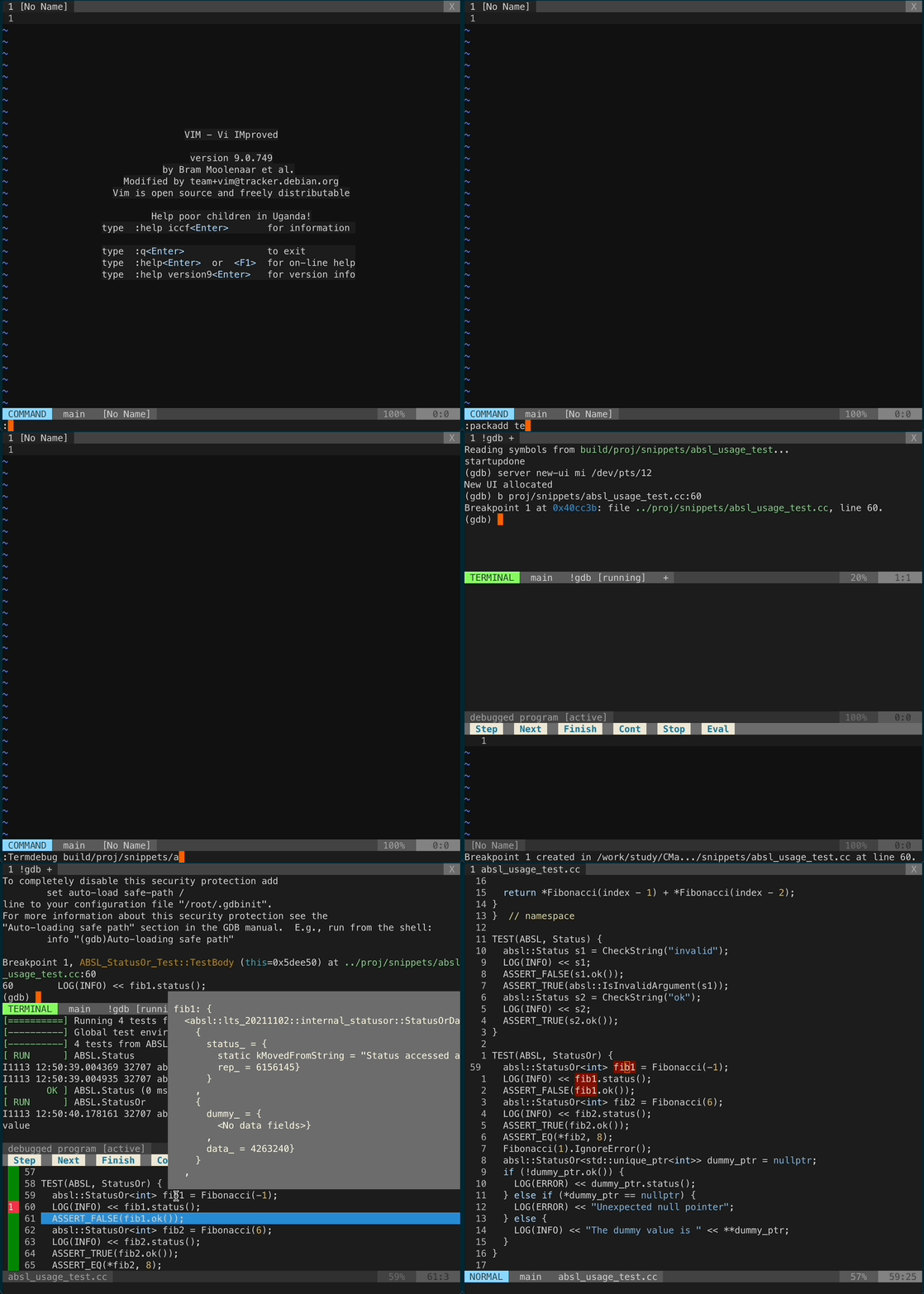
8 VIM启用GDB调试
VIM升级到8.0之后,可在VIM中直接打开gdb进行可执行程序的调试,详细操作步骤描述如下:
- 执行
vim命令打开VIM,此处可不打开任何文件 - [optional]建议打开VIM后使用
:set mouse=a命令启用鼠标操作,以正确显示调试菜单工具栏。启用VIM鼠标操作后,在不使用tmux窗口时,鼠标在变量上悬停可显示变量值 - 执行
:packadd termdebug命令来加载VIM内置gdb插件 - 使用
:Termdebug 可执行程序路径命令进行VIM调试可执行程序操作
- 最上方的gdb命令窗口和中间的输出窗口均是在VIM中创建的终端窗口,按
<Esc><Esc>键可进入终端普通模式。最下方源代码窗口为VIM文件编辑窗口- 在gdb命令窗口按
ctrl + d可以退出调试界面- 关于鼠标悬停显示变量值的补充说明:如果在不同的作用域有两个同名变量,那么浮动提示只能显示执行所处作用域的变量值,即使把光标放到不在当前作用域的变量上亦是如此
- 不默认启用VIM鼠标操作的原因:
- VIM操作使用键盘更快捷,减少鼠标依赖
- VIM鼠标操作会与tmux鼠标操作相互冲突,启用tmux鼠标模式时建议关闭VIM鼠标操作
具体操作示例见如下动图:
9. tmux使用技巧
- 将tmux升级到最新版本:tmux源码升级方案请参考CentOS和Ubuntu
- 确保
tmux外的终端$TERM值被设置为xterm-256color,可以使用export TERM=xterm-256color进行设置 - 使用gpakosz/.tmux配置
tmux,执行如下命令1 2 3
git clone --recursive https://github.com/wzzju/.tmux.git ~/.tmux ln -sf ~/.tmux/.tmux.conf ~/.tmux.conf ln -sf ~/.tmux/.tmux.conf.local ~/.tmux.conf.local
- 修改
~/.tmux.conf文件内容,注释掉bind -n C-l send-keys C-l \; run 'sleep 0.2' \; clear-history语句,使得ctrl + l按键仅用于清屏,不清除历史log - 修改
~/.tmux.conf.local文件内容,将如下设置语句的注释打开:1 2 3 4 5 6 7 8
# increase history size set -g history-limit 10000 # start with mouse mode enabled set -g mouse on # force Vi mode # really you should export VISUAL or EDITOR environment variable, see manual set -g status-keys vi set -g mode-keys vi
- 在
~/.tmux.conf.local文件中加入如下内容,这样在按下ctrl + k按键时可以清除历史log1
bind -n C-k send-keys C-k \; run 'sleep 0.2' \; clear-history
- tmux快捷键使用方法请参考Tmux快捷键速查表
9.1 tmux会话保存与恢复
- 下载插件
1
2
git clone https://github.com/tmux-plugins/tmux-resurrect.git ~/.tmux/tmux-resurrect
git clone https://github.com/tmux-plugins/tmux-continuum.git ~/.tmux/tmux-continuum
- 编辑
~/.tmux.conf.local文件,加入如下内容:1 2
run-shell ~/.tmux/tmux-resurrect/resurrect.tmux run-shell ~/.tmux/tmux-continuum/continuum.tmux
- 重新加载配置文件以使插件生效
1
tmux source-file ~/.tmux.conf
- 使用方法
ctrl + b + ctrl + s进行会话保存(ctrl + b是tmux的prefix键)ctrl + b + ctrl + r进行会话恢复
10. autojump使用技巧
autojump的安装与使用详见懒人神器autojump一文。
j directoryName:跳转到指定目录,若不知目录全名,输入一部分,按Tab键可自动补全1 2 3
~ j cin__ cin__1__/work/Develop/CINN cin__3__/work/.virtualenvs/cinn-dbg cin__2__/work/Develop/CINN/gdb_cinn cin__4__/work/Develop/CINN/python/cinn
jo directoryName:使用系统工具打开目录(Mac Finder/Windows Explorer)。Mac下的效果等价于open命令,但open命令需要指定完整路径j -s:查看每个目录的权重,权重越高,说明目录使用得越频繁j -i [权重]:手工增加当前目录的权重j -d [权重]:手工减少当前目录的权重j --purge:将不再存在的目录从数据库中移除
参考资料
- vim神级配置vimrc
- The Ultimate vimrc
- 在vim中优雅地查找和替换
- vim空格转tab
- CentOS 升级 tmux 1.8 到最新版
- Tmux 快捷键 & 速查表 & 简明教程
- vim-plug
- Using LSP & clangd in Vim
- 使用Clangd提升C++代码编写体验
- Hedron’s Compile Commands Extractor for Bazel
- Vim’s absolute, relative and hybrid line numbers
- 如何更改jedi-vim使用的python解释器
- Preview Markdown in Vim
- Markdown Preview in Vim
- VimL之Terminal相关函数
- VimL语言编程指北
- tmux会话断电保存自动恢复
- tmux resurrect 配置